

Description
Download CyberLink PowerBackup – Simple, Secure Backup Solution for Windows
Overview: Why CyberLink PowerBackup Stands Out in a Crowded Backup Market
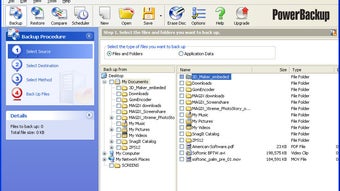
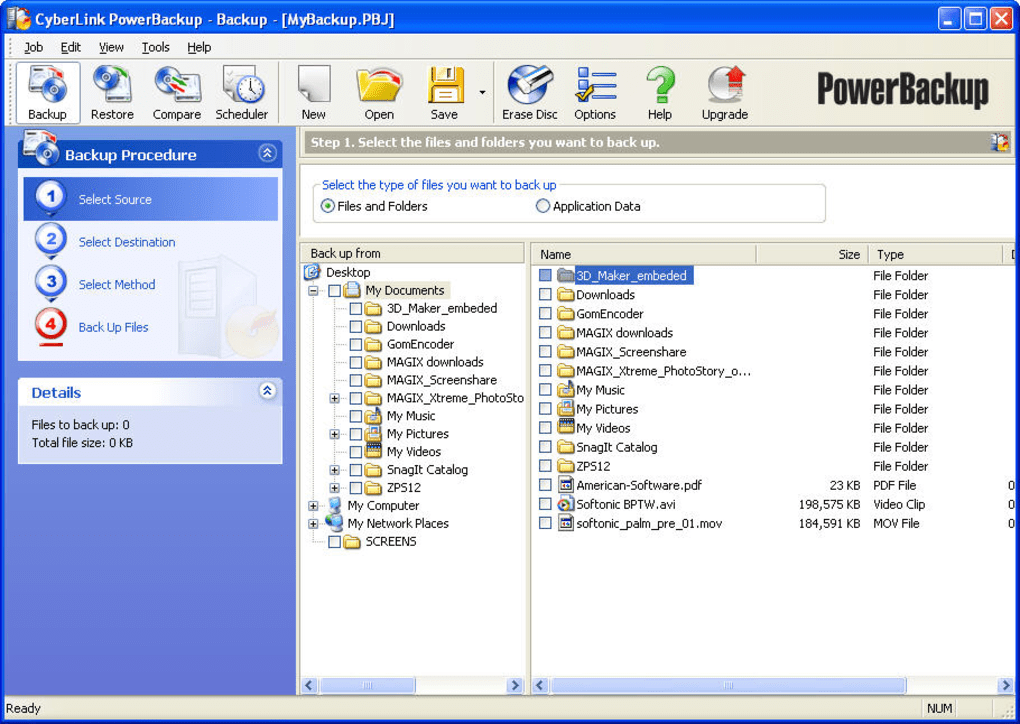
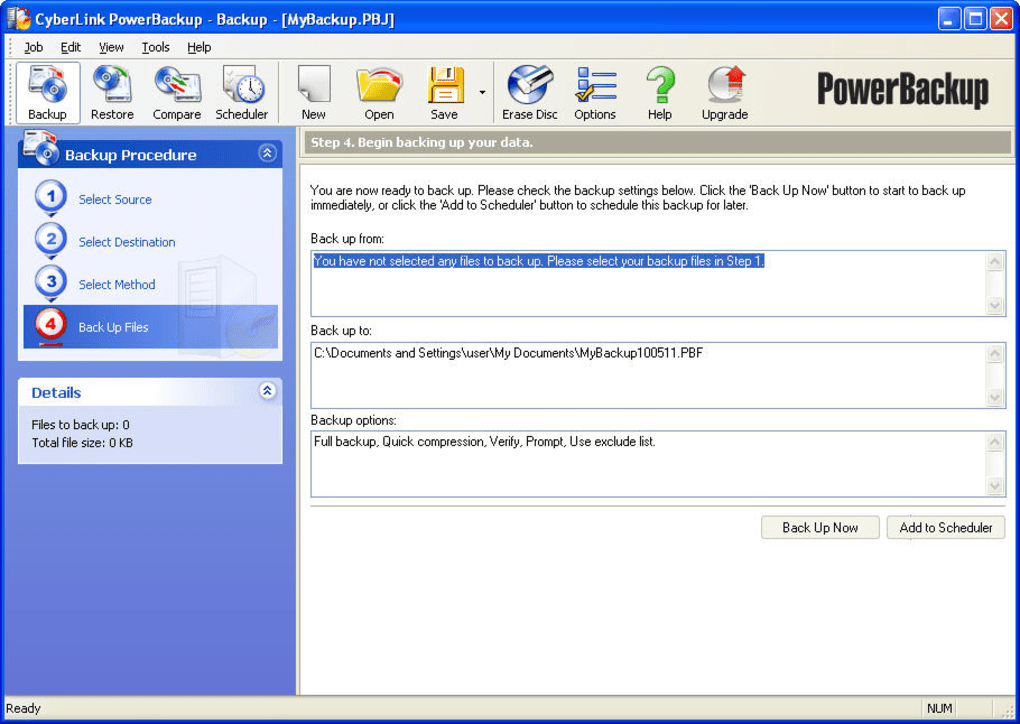
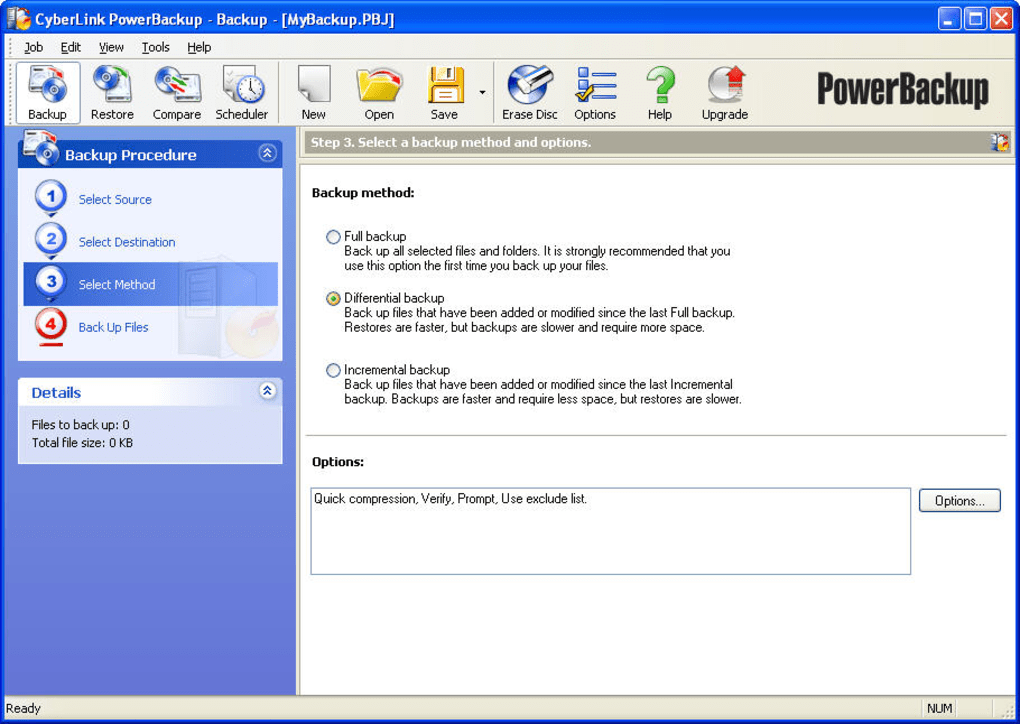
CyberLink PowerBackup is a handy, reliable backup tool designed to protect your most valuable data with minimal effort. Unlike many enterprise‑grade solutions that overwhelm users with endless options, PowerBackup focuses on a clean, four‑step workflow that anyone can master in minutes. First, you select the files, folders, or application data you want to safeguard. Next, you choose a destination—whether it’s an internal drive, external hard disk, USB stick, DVD, or even a Blu‑ray disc. The third step lets you pick a backup method: a full backup for a complete snapshot, a differential backup that captures changes since the last full backup, or an incremental backup that stores only the latest modifications. Finally, you launch the process immediately or schedule it for automatic execution.
The software also includes essential security features such as password protection and built‑in ZIP compression to shrink backup size without sacrificing integrity. While PowerBackup does not boast advanced deduplication or cloud sync, its straightforward interface, low learning curve, and reliable performance make it an excellent choice for home users, freelancers, and small businesses that need a “set‑and‑forget” solution. In the following sections we’ll dive deeper into the core features, walk through the installation and daily usage, examine system compatibility, and weigh the pros and cons to help you decide if CyberLink PowerBackup is the right tool for your backup strategy.
Key Features That Make PowerBackup a Practical Choice
- Four‑step backup wizard – select data, choose destination, set method, start or schedule.
- Three backup modes: Full, Differential, Incremental for flexible storage management.
- Support for removable media including DVD, Blu‑ray, USB drives, and external hard disks.
- Built‑in ZIP compression to reduce backup size and speed up transfer.
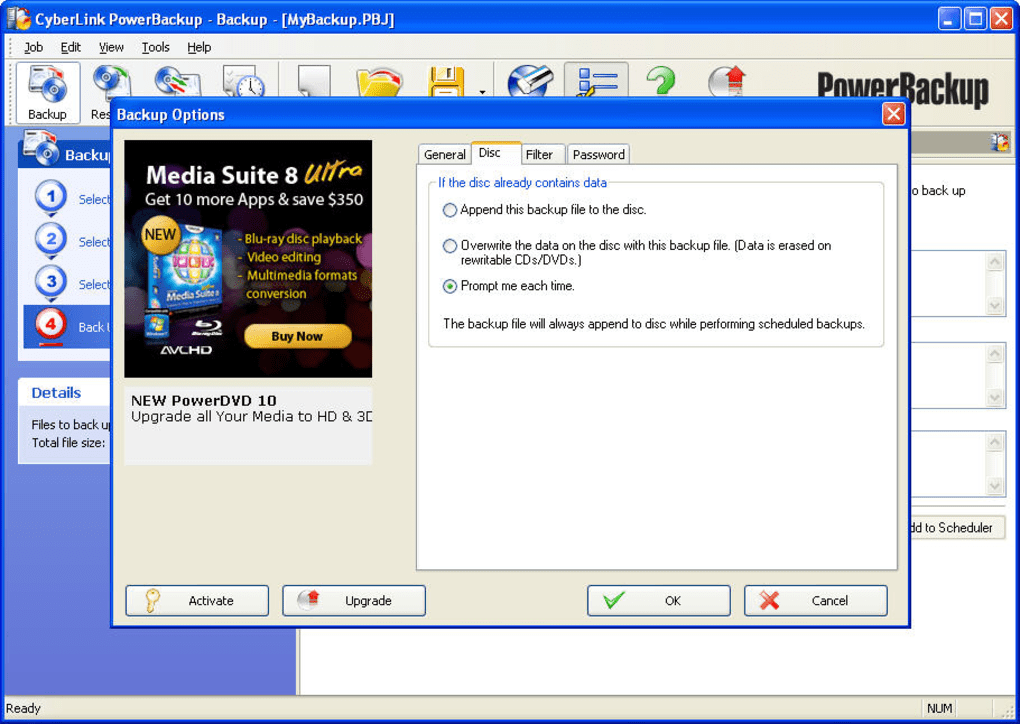
- Password protection for encrypted backup files.
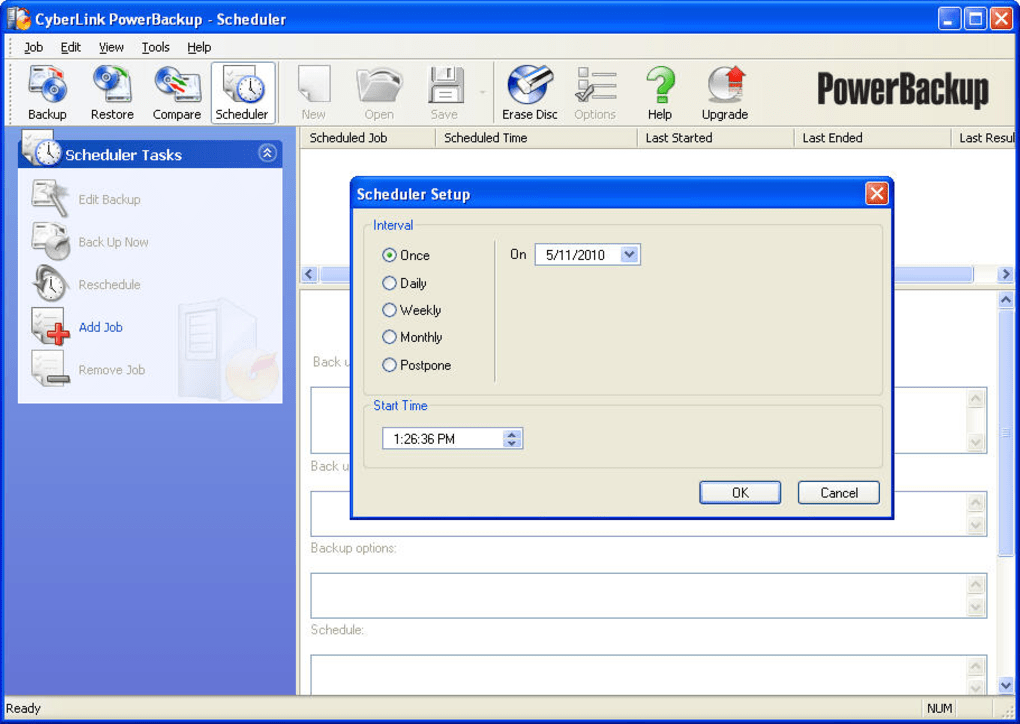
- Scheduler for automated, recurring backups (daily, weekly, monthly).
- Simple restore interface that lets you pick individual files or whole sets.
- Lightweight footprint – runs smoothly on modest hardware without high CPU usage.
- Clear progress indicators and log files for audit trails.
Each of these features is deliberately designed to keep the backup experience intuitive. The wizard guides users through the entire process, eliminating the need for manual command‑line entries or complex configuration files. The three backup modes cater to different storage strategies: a full backup provides a complete baseline, differential backups capture only what’s changed since that baseline, and incremental backups record changes after each backup, maximizing space efficiency. ZIP compression not only saves space but also speeds up data transfers to slower media such as optical discs. Password protection adds a layer of security, ensuring that even if a backup disc falls into the wrong hands, the contents remain unreadable without the correct key.
Although PowerBackup does not include cloud integration, its focus on local and removable media aligns well with users who prefer offline storage for privacy reasons. The scheduler works in the background, allowing you to set up nightly or weekly backups that run without interrupting your workflow. Finally, the restore module mirrors the simplicity of the backup process, letting you browse backup sets, preview files, and restore exactly what you need with just a few clicks.
Installation & Usage: Step‑by‑Step Guide to Getting Started
Downloading and Installing PowerBackup
To begin, visit the official CyberLink website or a trusted software portal and click the Download button for PowerBackup. The installer is a lightweight .exe file (approximately 25 MB) that works on Windows 7, 8, 8.1, 10, and 11. After the download completes, run the installer with administrative privileges. The wizard will ask you to accept the End‑User License Agreement, choose an installation folder (the default location is usually fine), and decide whether to create a desktop shortcut. Once the installation finishes, you’ll see the PowerBackup icon ready to launch.
Running Your First Backup
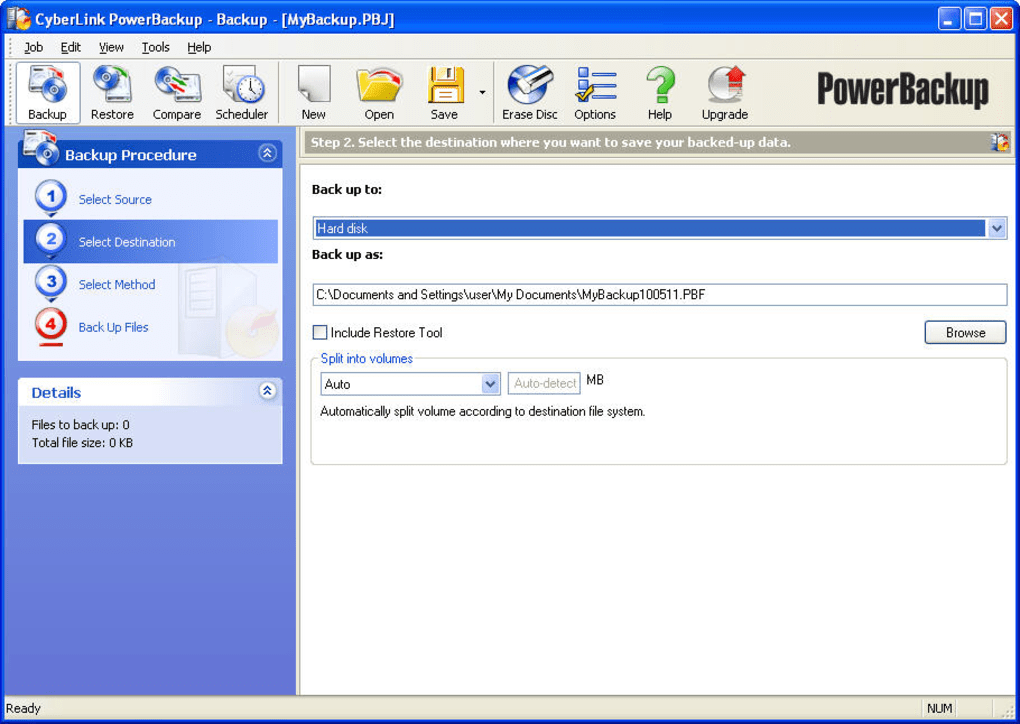
When you open PowerBackup, the main dashboard presents the four essential steps. Step 1 – Select Data: Click “Add Files/Folders” and browse to the items you wish to protect. You can also select whole application data directories for programs like Outlook or Photoshop. Step 2 – Choose Destination: Pick a storage location from the dropdown list or click “Browse” to locate a removable drive, DVD, or network share. PowerBackup automatically detects inserted media and displays its capacity.
Step 3 – Pick a Backup Method: Choose between Full, Differential, or Incremental. For a brand‑new backup set, select “Full.” If you plan to run backups regularly, you may set “Differential” for weekly snapshots and “Incremental” for daily updates. Step 4 – Start or Schedule: Hit the “Back Up Now” button for an immediate run, or click “Schedule” to define a recurring job. The scheduler offers flexible options—daily at a specific hour, weekly on a chosen day, or monthly on a set date.
Restoring Files
To restore, navigate to the “Restore” tab, locate the backup set you want, and browse its contents. You can restore an entire backup or pick individual files and folders. The restore wizard respects the original folder structure, and you can choose a new destination if you prefer not to overwrite existing files.
Overall, the installation and daily usage of CyberLink PowerBackup require no technical expertise. The clean UI, clear labeling, and wizard‑driven flow keep the process transparent, allowing users to focus on protecting data rather than configuring software.
Compatibility, Pros & Cons, and Frequently Asked Questions
Supported Operating Systems: Windows 7, Windows 8/8.1, Windows 10, Windows 11 (64‑bit). The software is optimized for modern Windows environments and does not have native macOS, Linux, Android, or iOS versions.
Pros and Cons
- Pros
- Extremely easy to set up – four‑step wizard eliminates confusion.
- Multiple backup methods (full, differential, incremental) give flexibility.
- Supports a wide range of removable media, including optical discs.
- Built‑in ZIP compression and password protection enhance security.
- Low system resource usage – runs silently in the background.
- Scheduler automates regular backups without manual intervention.
- Cons
- No cloud storage integration; relies solely on local/physical media.
- Lacks advanced features such as deduplication, versioning, or file‑level encryption beyond password protection.
- Only available for Windows; no macOS, Linux, or mobile app versions.
- User interface, while simple, looks dated compared to modern SaaS backup tools.
Frequently Asked Questions
Can I back up to a network drive or NAS?
Yes. PowerBackup lets you select any mapped network drive or UNC path as a backup destination, making it suitable for small office environments with a NAS.
Is the backup file encrypted?
PowerBackup offers password protection, which encrypts the backup archive using a standard AES‑128 algorithm. While not as robust as full‑disk encryption, it provides a solid layer of security for most personal use cases.
How much space does a compressed backup save?
Compression ratios vary depending on file types, but typical text and office documents see a 40‑60 % reduction, while already compressed media (videos, images) may only shrink by 5‑10 %.
Can I run multiple backup jobs simultaneously?
PowerBackup processes one job at a time. However, you can queue multiple jobs via the scheduler, and they will run sequentially without user intervention.
Is there a free trial or free version?
CyberLink offers a 30‑day free trial that provides full access to all features. After the trial, a single‑user license can be purchased for a modest one‑time fee.
Conclusion: Is CyberLink PowerBackup the Right Backup Tool for You?
CyberLink PowerBackup delivers exactly what its tagline promises – a simple, reliable way to protect your important data without getting lost in a sea of settings. Its four‑step wizard, flexible backup modes, and support for removable media make it an ideal choice for home users, freelancers, and small offices that need a straightforward local backup solution. While power users may miss advanced features like cloud sync, deduplication, or cross‑platform support, the software’s ease of use, low system impact, and solid security options (ZIP compression and password protection) outweigh those omissions for many scenarios.
If you’re looking for a secure, hassle‑free way to back up documents, photos, and application data to an external drive or disc, PowerBackup checks all the boxes. The free trial allows you to evaluate the interface and performance before committing to a purchase. Once convinced, a single license unlocks unlimited backups for a single Windows PC, providing long‑term peace of mind.
Ready to safeguard your files? Download CyberLink PowerBackup now, start your 30‑day trial, and experience a backup process that’s as simple as a click of a button.
CyberLink PowerBackup strikes a balance between simplicity and functionality. Its straightforward workflow, reliable compression, and flexible scheduling make it a solid choice for anyone who wants to protect data without a steep learning curve. The lack of cloud integration is a minor drawback, but for users who prioritize local, offline backups, this tool shines.
Guides & Tutorials for CyberLink PowerBackup
How to install CyberLink PowerBackup
- Click the Preview / Download button above.
- Once redirected, accept the terms and click Install.
- Wait for the CyberLink PowerBackup download to finish on your device.
How to use CyberLink PowerBackup
This software is primarily used for its core features described above. Open the app after installation to explore its capabilities.
User Reviews for CyberLink PowerBackup 0
No reviews found





